Every stop. Every student. Every parent told.

One app for your school's bus drivers and transport controller. The driver follows the route and marks each child boarded, absent or dropped. The controller sees the whole day as it happens. Parents get WhatsApp messages, with no app to install.

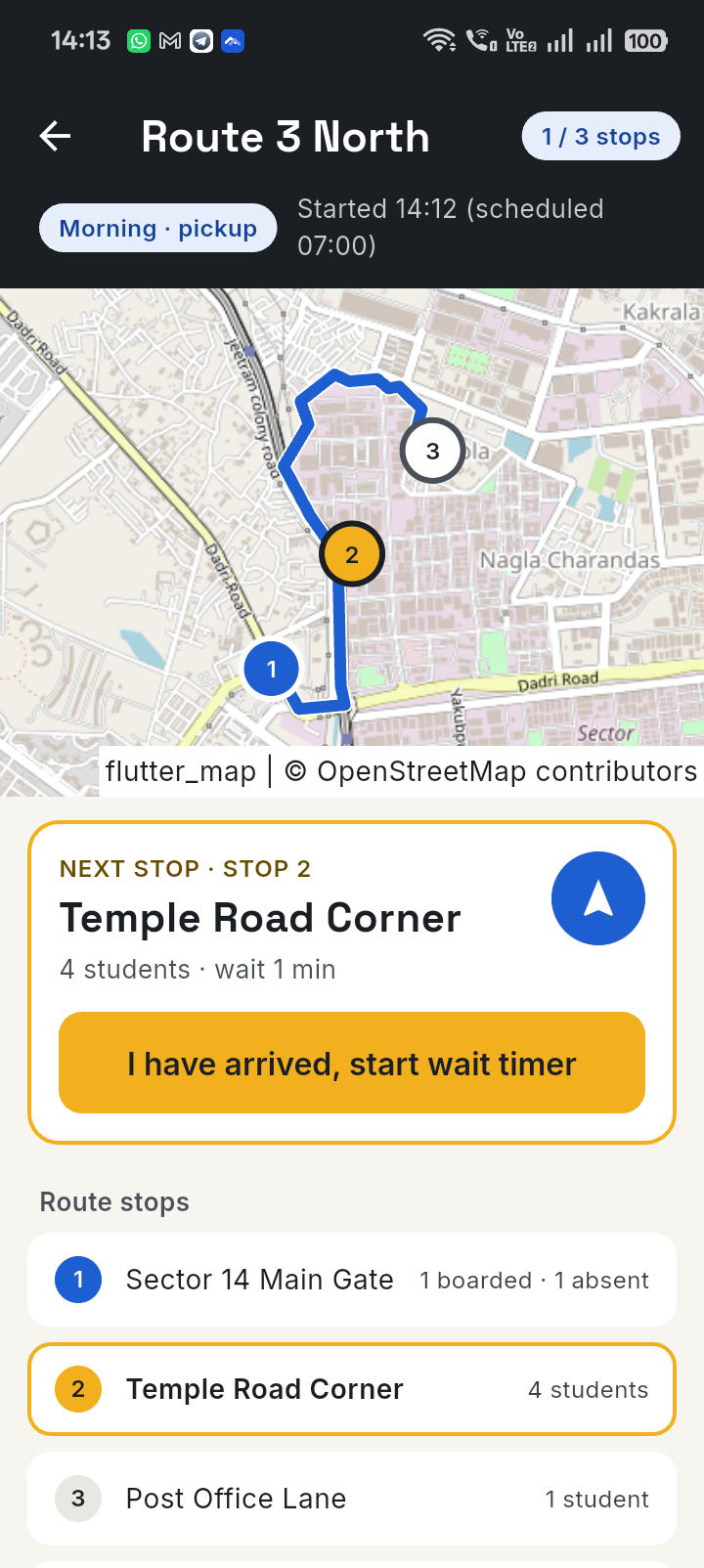
The driver's trip screen: a map of Route 3 North with the road drawn through three numbered stops, and a card for the next stop with a button to start the wait timer.

A day on the bus

The same simple steps, every morning and every evening

The driver chooses the route and starts the trip. The app takes them through each stop in order.

Morning pickup

  1. The driver starts the route. A map shows the road through every stop.
  2. At each stop they tap I have arrived, and a wait timer starts.
  3. They check the child's photo and mark each student Boarded or Absent.
  4. They leave the stop. If a child was not marked, the app asks before it lets them go.
  5. At the school the trip ends, and the arrival time is logged.

Evening drop

  1. At the school the driver does a roll call: who is on the bus?
  2. They leave the school and follow the stops in order.
  3. At each stop they mark every child Dropped as they get off, and can undo a mistake.
  4. If a child is still marked on the bus when leaving a stop, or when ending the trip, the app warns the driver.
  5. If a trip ends with a child still on the bus, the controller sees it in the trip log.

For drivers

Built to use at a bus stop

The route and the next stop, always in view

The map draws the real road route through the stops, with the stops numbered and the next one highlighted. One tap opens your maps app to navigate to it.

  • The next stop's name, its student count and its wait time sit right under the map.
  • A list of every stop shows how many boarded or were absent at each one.
  • Location is used only while the app is open.
The trip screen after the first stop: the route on a map, stop 2 highlighted, and a list of stops showing 1 boarded and 1 absent at stop 1.

Mark each child in one tap

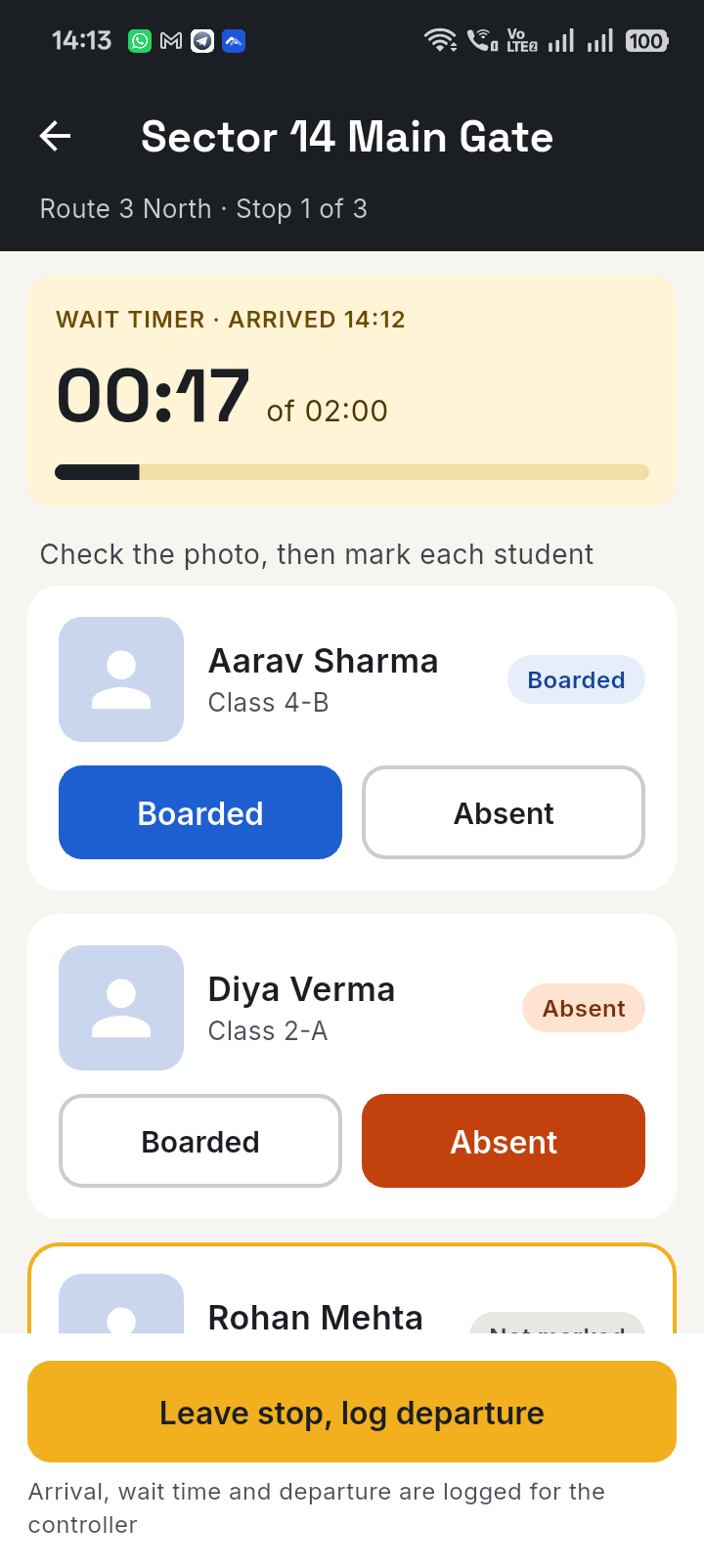
At the stop, each student has a card with their photo, name and class, and two big buttons: Boarded and Absent. A wait timer shows how long the bus has stood against the time allowed.

  • The wait timer starts when the driver arrives, and the controller sees the allowed wait against the actual wait.
  • Leaving with unmarked children asks for confirmation first.
  • Arrival, wait and departure are logged for the controller automatically.
A stop screen with a wait timer at 00:17 of 02:00, and cards for two students: Aarav Sharma marked Boarded and Diya Verma marked Absent.

For transport controllers

Set it up once, then watch the day

Buses, routes, stops and students

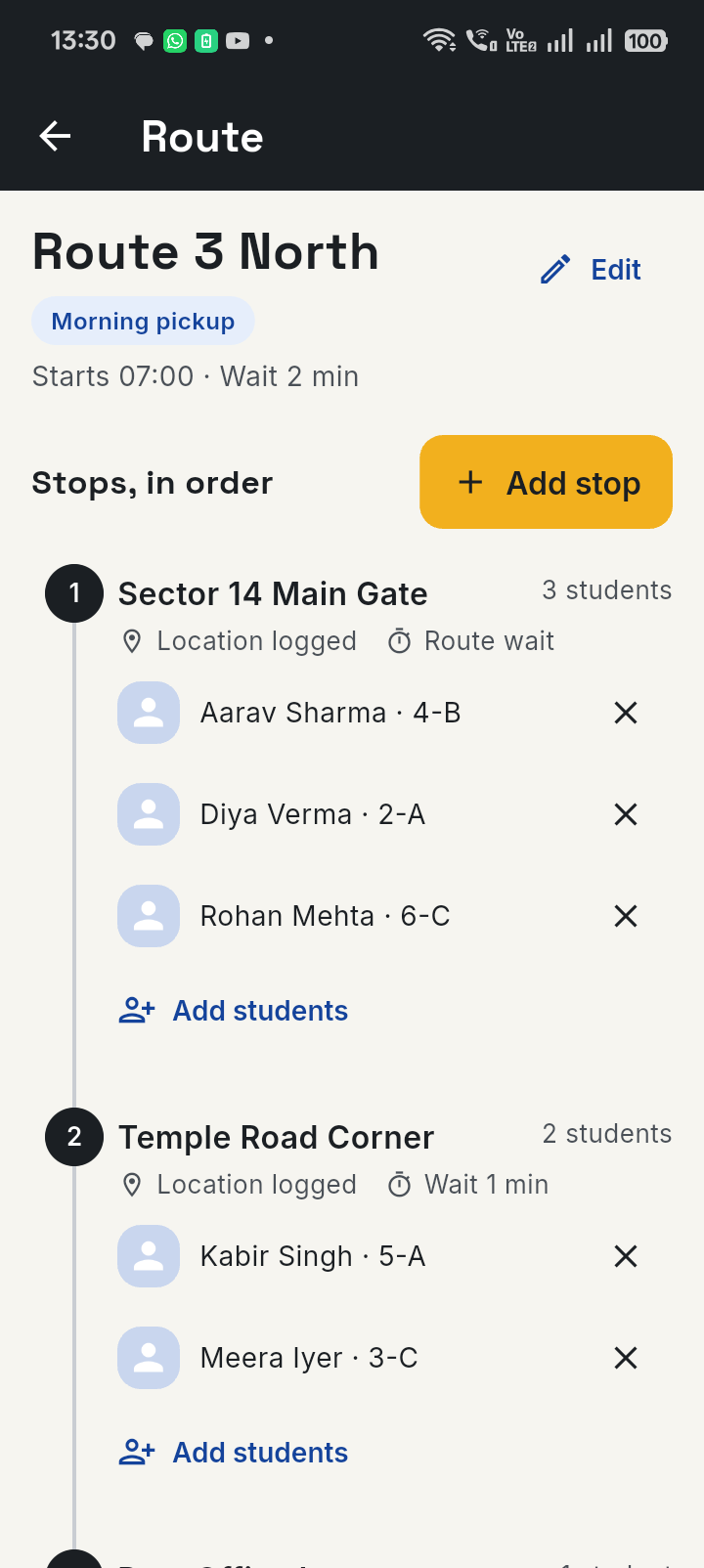
Add each bus with its driver, build each route stop by stop, and put every student on the stop where they board. Stops are shown as a simple timeline with the school as the fixed end.

  • Each bus can run several routes, morning pickup and evening drop, each with a start time and a wait per stop.
  • Make the evening drop from the morning route in one step. The stops reverse and the same students come along.
  • Each student has a photo and a parent's mobile number.
  • Log the school's location once, and every route ends or starts there.
The route screen for Route 3 North: a morning pickup at 07:00 with numbered stops and the students at each stop.

Put a whole class on a stop in seconds

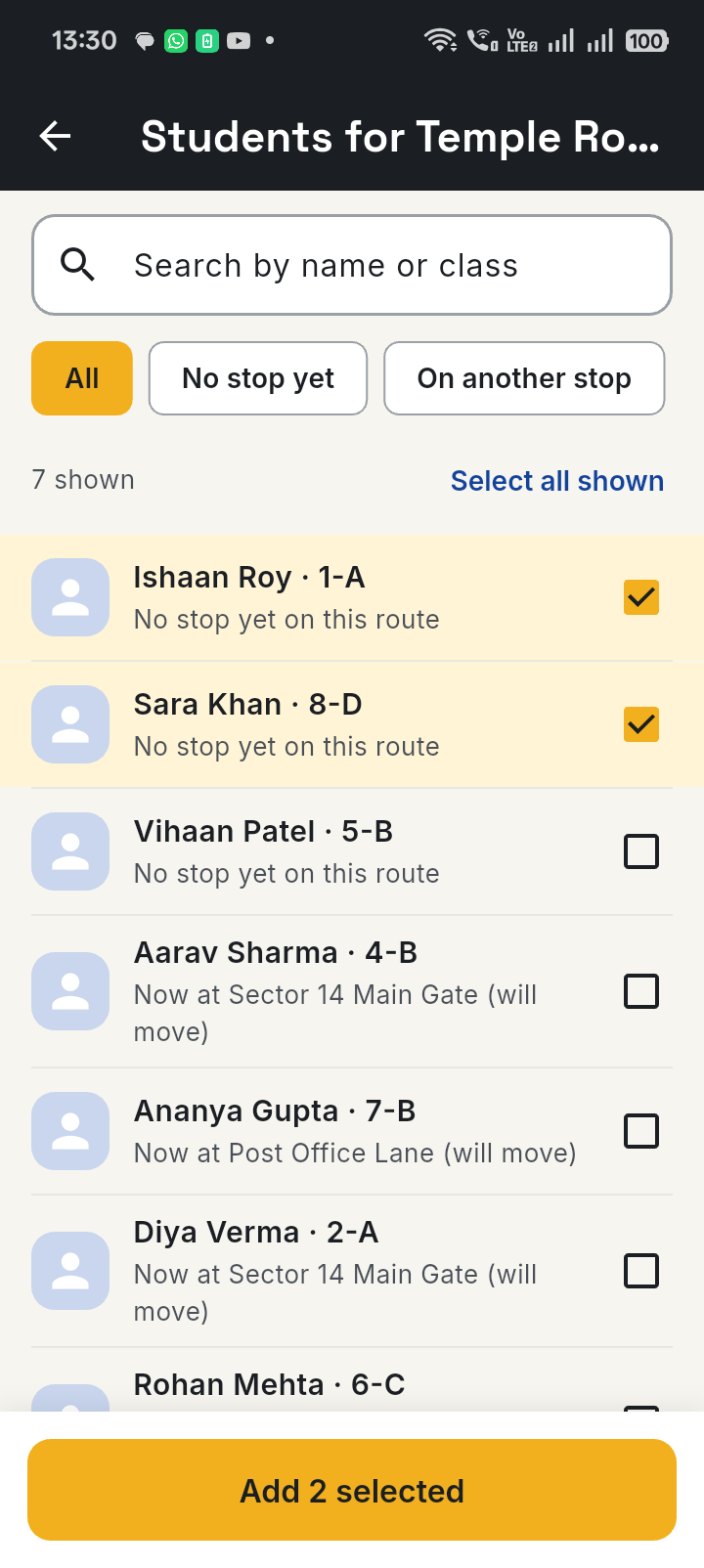
Search by name or class, filter to children with no stop yet, select everyone shown, and add them together. Each row says where the child is now, so nobody is moved by mistake.

  • A bar at the bottom shows how many you have picked.
  • Picks are kept while you search and filter.
The student picker with a search box, filter chips, and two students selected. The button reads Add 2 selected.

Today at a glance, and a log of every trip

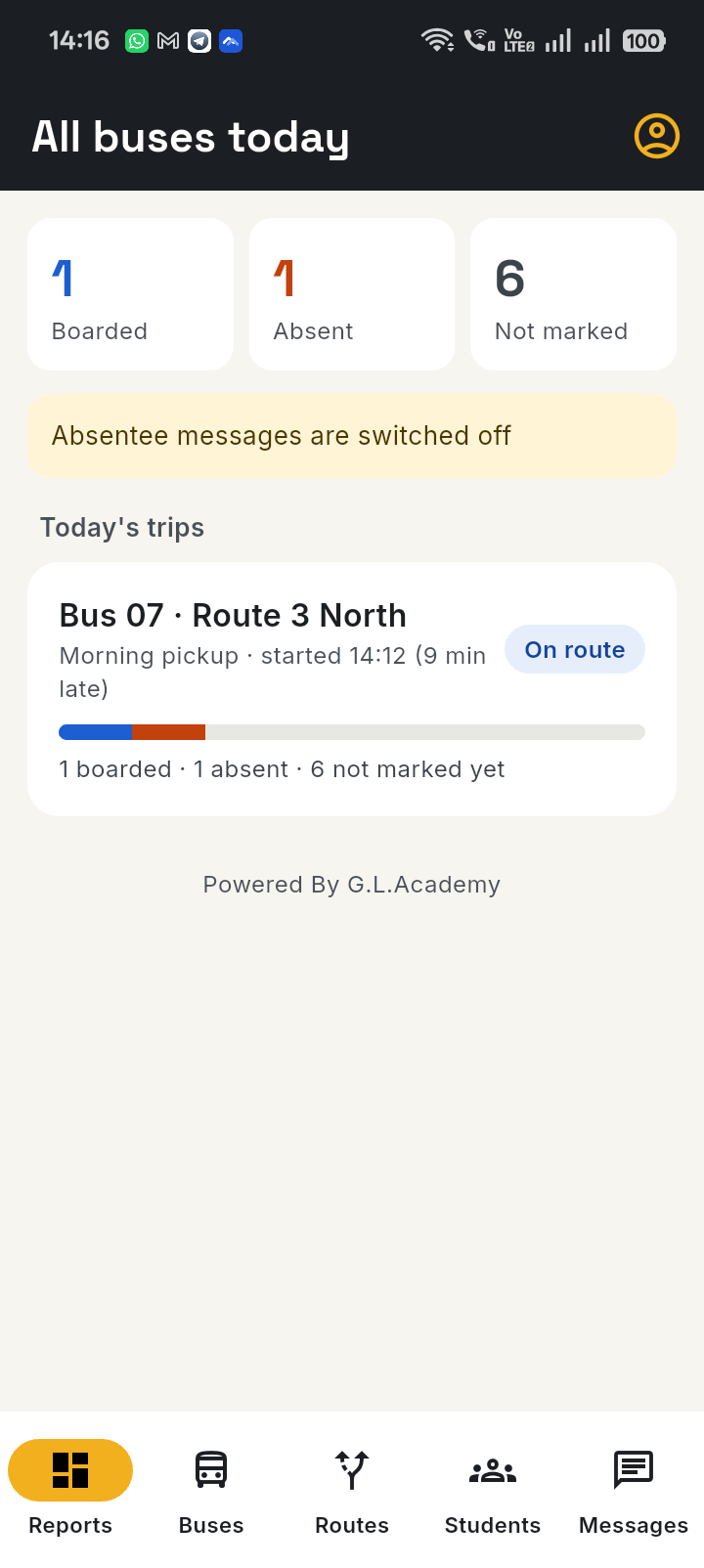
The Reports screen counts how many students boarded, were absent or are not marked yet, for every bus, with each trip shown as on route or done.

  • See how late each trip started, and who is left on a bus.
  • The trip log shows scheduled against actual start, the total wait, and for every stop the arrival, the wait and the departure.
  • A stop that waited longer than allowed is marked, with the time over.
The Reports screen: 1 boarded, 1 absent and 6 not marked, and the trip for Bus 07 on Route 3 North shown as on route, started 9 minutes late.

For parents

Parents are told on WhatsApp, in your school's words

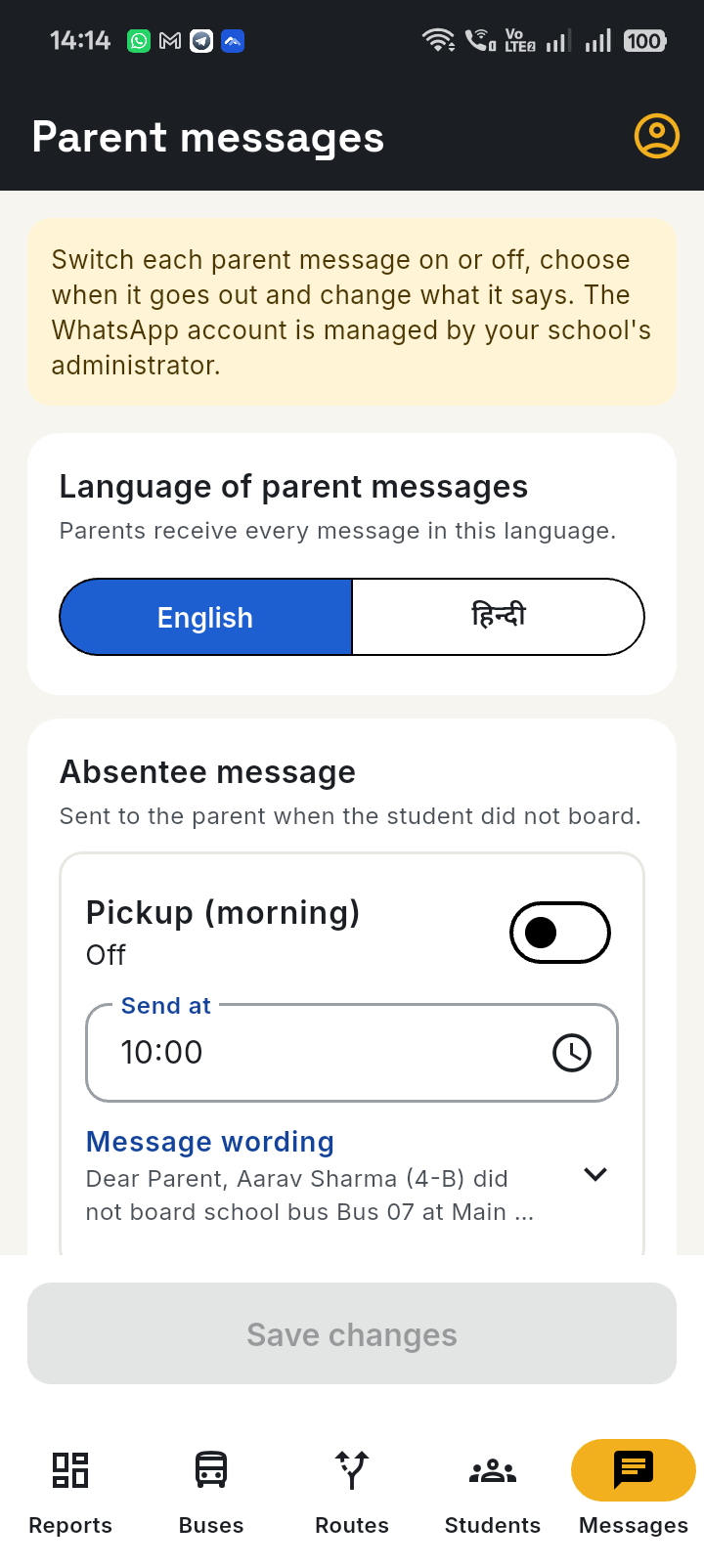
Parents do not need an app. The school's own WhatsApp Business account sends the messages, and every one is switched off until the controller turns it on.

Four messages the controller can switch on

  • Absent: sent at a time the school chooses, when a child did not board.
  • Boarded: sent right after the driver marks the child boarded, or at a set time.
  • Late: sent when a trip starts late, to the parents of the stops the bus has not reached yet, with the minutes late.
  • Dropped: in the evening, sent right after the child is dropped at their stop.

Morning and evening are set separately, and each can be turned on or off on its own.

The Parent messages screen: a language choice, and the Absentee message for pickup, switched off, with a send time and the wording.

Your wording, in English or Hindi

Each message has an English and a Hindi wording that the controller can edit. They use words like the student's name, class, bus, stop and time, which the app fills in for each child. Parents get every message in the language the school picks.

  • The app submits each wording to WhatsApp for approval for you, and shows whether it is approved.
  • Each school uses its own WhatsApp Business account.
  • Drivers and controllers can also use the whole app in English or Hindi.
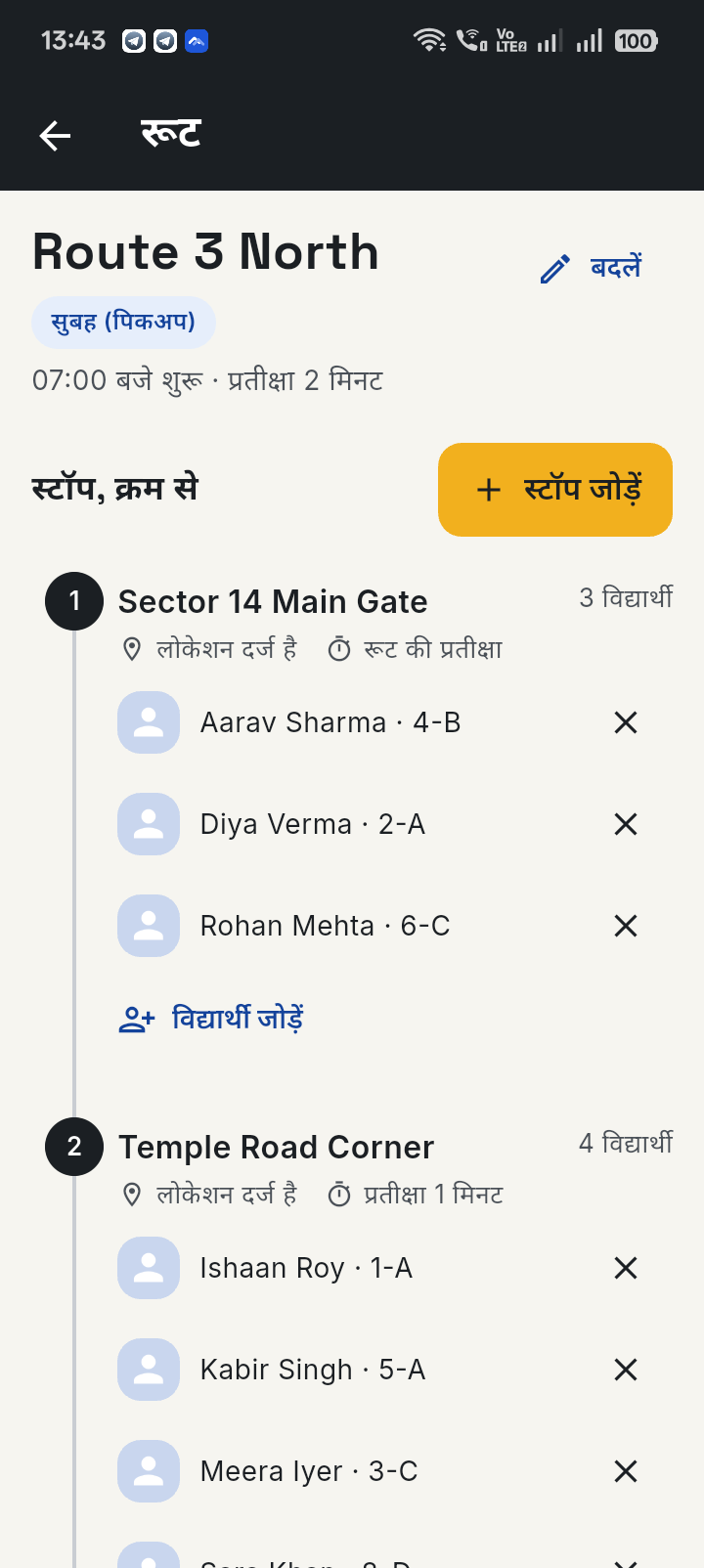
The route screen in Hindi.

Getting in

A code on your phone. No passwords.

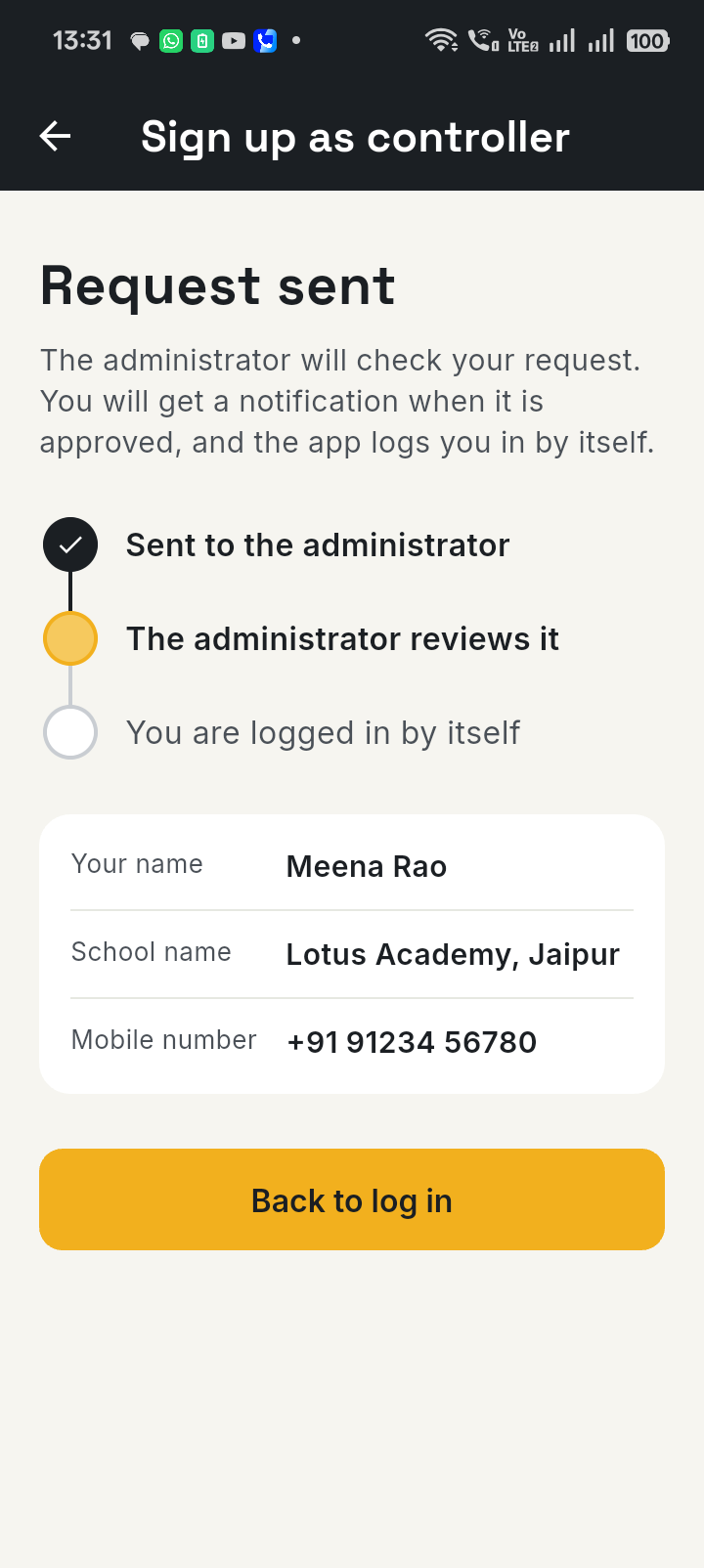
Everyone signs in with their mobile number and a one-time code. A new controller sends a request and waits for approval. The moment it is approved they get a notification, and the app signs them in by itself.

  • Drivers are added by their controller, using the driver's mobile number.
  • Every user can log out, or delete their own login, inside the app.
The request-sent screen showing three steps: sent to the administrator, the administrator reviews it, you are logged in by itself.

Good to know

Built for how schools actually run

Many schools, kept apartEvery school has its own buses, routes, students and WhatsApp account. One school cannot see another's data.
Set up by IfStaticAn administrator approves each school, adds its WhatsApp account and sets up its first messages.
Location, only when openThe app uses location only while it is open. There is no background tracking.
Android appDrivers and controllers use one Android app and see the screens for their role.

Want it for your school?

Controllers sign up in the app and we approve the school. To get started, or to ask a question, get in touch with IfStatic.